
Business admin for UK trades
Rescheduling Trade Jobs: A Customer Notification Checklist
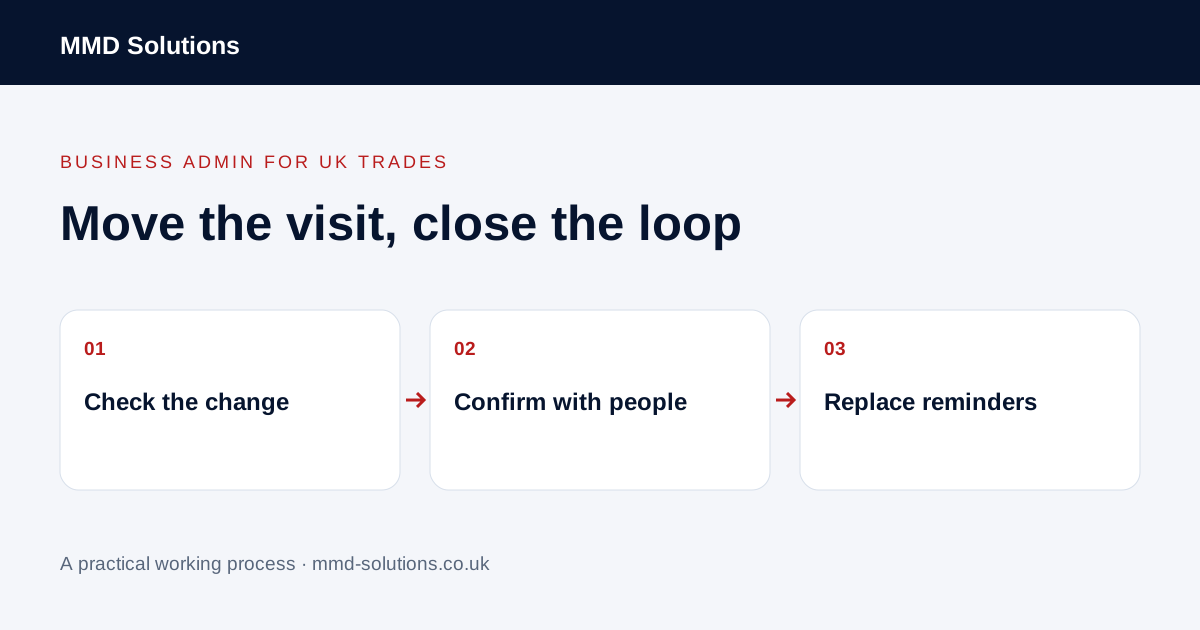
When a job moves, changing the calendar is only one part of the work. The customer, the person arranging access and the team need the same confirmed information. Use this checklist for an existing visit that needs a new date or time.
Find the visit that is actually changing
Open the job reference and identify the affected visit, rather than editing every appointment under the customer. A customer may have a survey, a first visit and a return visit. A landlord may also have several properties. Confirm the address, current date, arrival window and assigned person before making changes.
Record the reason in useful business terms, such as availability awaiting confirmation. Keep private internal details out of customer messages. If moving this visit affects another commitment, flag that dependency before offering the replacement.
Separate a proposed date from a confirmed date
Check travel, team availability and access arrangements before offering a slot. A gap in the diary is not confirmation that everyone can attend. Where the owner must approve a change, ask for that decision before promising the customer a replacement.
Use a clear position: replacement proposed, awaiting customer response, or confirmed. Assign one person to obtain the response so two people do not independently offer different times. Keep the previous booking visible in the history.
Use one precise rescheduling message
If the date is already agreed, say that you are confirming the agreed change instead. Avoid sending a proposal that reads like a final booking. If another person arranges access, check who needs the confirmation rather than forwarding a whole private conversation.
Check old reminders and recurring visits
Review reminders linked to the previous time and any separate personal calendar copy. Check whether changing one visit also changes a recurring series. The correct behaviour depends on the software and the action used.
Jobber documents a rescheduling notification prompt for individual visit changes and cancellation of reminders tied to the previous schedule. Its documentation distinguishes individual visits from assessments and bulk changes. That is an existing feature to check before adding a second automation; do not assume every tool behaves the same way.
Verify the change from the next person’s view
- Record the agreed new visit and the customer response.
- Confirm the assigned team can see the replacement.
- Check that the old time will not still be presented as current.
- Review reminder settings and any manual messages already sent.
- Leave an owner and review date if confirmation is still missing.
A successful calendar save does not prove that a customer received or accepted a message. If a message fails or the customer objects, keep that exception open. Do not keep sending automatic confirmations while a person is resolving the date.
Download the visit-change checklist
Download the blank rescheduling checklist (CSV). Start with one changed visit and adapt the headings inside your current job system. The worksheet is an alternative working aid, not another list that must be maintained beside a system already doing the job.
After a few changes, review what was missed: access, an old reminder, team visibility or customer confirmation. Fix the specific cause rather than buying scheduling software solely because a change was awkward.
Sources and review
Reviewed 24 October 2026. Jobber: visits and rescheduling notifications.
Source material supports the specific examples referenced. The checklists, worksheets and illustrative scenarios are MMD's suggested business-admin processes, not customer results. Product workflows can change; check current documentation for the software you use.