
Business admin for UK trades
How to Organise Job Photos for the Office and Customer Record
A photo in a personal phone gallery may be difficult for the office to find when preparing an update or assembling job paperwork. Put the relevant file beside its job record with a short explanation. This guide is about organising records, not deciding whether work is technically correct.
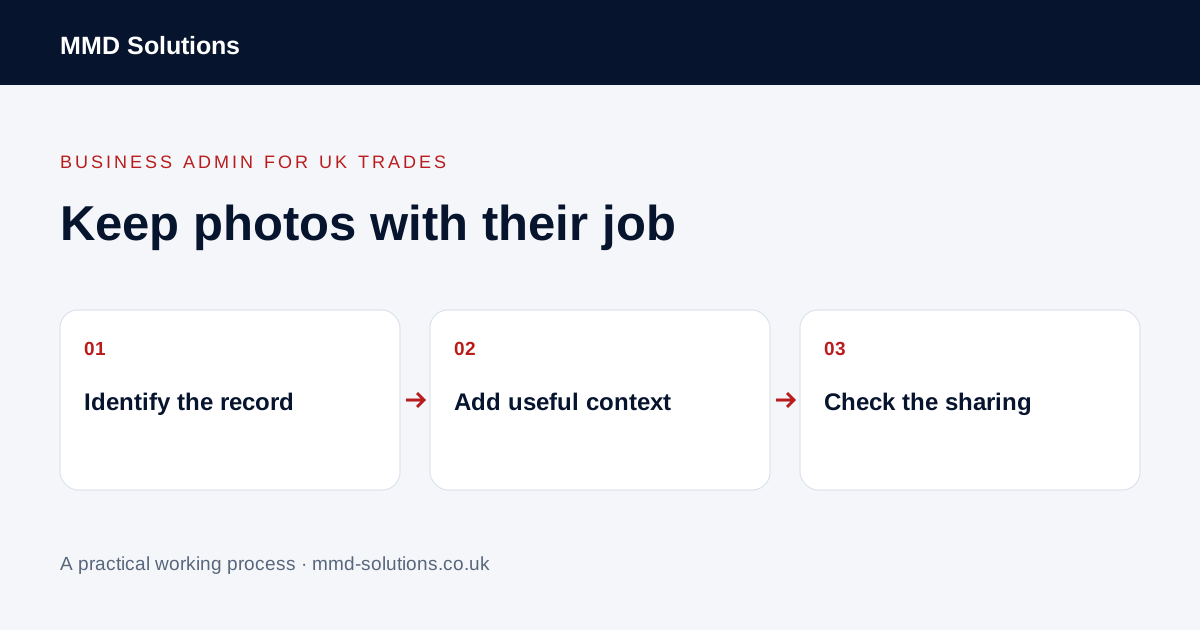
Record what the photo is for
Link the file to a job and, where useful, the specific visit or stage. Record the capture date and a factual description such as “customer-supplied image awaiting owner review”. Avoid implying that an upload date proves when the work occurred or that an image alone demonstrates completion.
Distinguish customer-supplied, team-captured and annotated copies. Keep the source file identifiable when a separate annotated version is used. The office needs to know which version is current and what decision, if any, the owner has made.
Use a repeatable filing pattern
A simple pattern is job reference, visit date and a short description. For example, the fictional file A104_2026-10-25_visit-1_overview identifies the administrative context without a long customer address in the filename. Use the structure your existing job system supports rather than forcing a naming scheme into every app.
Keep files under the correct job or visit instead of a generic customer folder when the customer has several properties. Link the file from the working record rather than creating uncontrolled copies in email, chat and a second spreadsheet.
Give the office an action, not a pile of images
- Identify the job and the relevant files.
- State why the office needs them.
- Record whether an owner review is outstanding.
- Separate internal notes from anything approved to send.
- Name the person responsible for the next action.
“Photos uploaded” does not mean “send all of them to the customer”. If the purpose is unclear, ask. Leave technical interpretation and any statement about the condition of work to the responsible person.
A photo-handover example
The handover is usable because it states context and authority. It does not claim that the photographs prove work quality, satisfy an insurer or replace required professional documentation.
Check access and recipients before sharing
Only retain and share information needed for the business purpose. Check for unrelated people, paperwork or private access details in the image. Use the business’s appropriate permissions and retention process rather than leaving long-term customer archives on personal devices.
Jobber documents photo attachments to notes and states that notes are internal by default; selected attachments can be included in customer emails. That distinction is worth checking in any system. Open the outgoing message preview and confirm the intended files and recipient before sending. Use supported filing features before building custom photo storage.
Download the working checklist
Download the blank worksheet (CSV). Use fictional details for a trial, then adapt the fields in the system you already maintain. Do not keep a separate spreadsheet just to duplicate a working process. Protect real customer details and share only what the person handling the task needs.
Sources and review
Reviewed 25 October 2026. Jobber: notes and attachments.
Source material supports the specific examples referenced. The checklists, worksheets and illustrative scenarios are MMD's suggested business-admin processes, not customer results. Product workflows can change; check current documentation for the software you use.