
Business admin for UK trades
How to Clean Duplicate Customer Records in a Trade CRM
Two similar customer names are a reason to review, not a reason to press merge. A trade business may work for an organisation, a property manager and several sites at once. This checklist helps you decide whether records are duplicates and check what happens to their linked work.
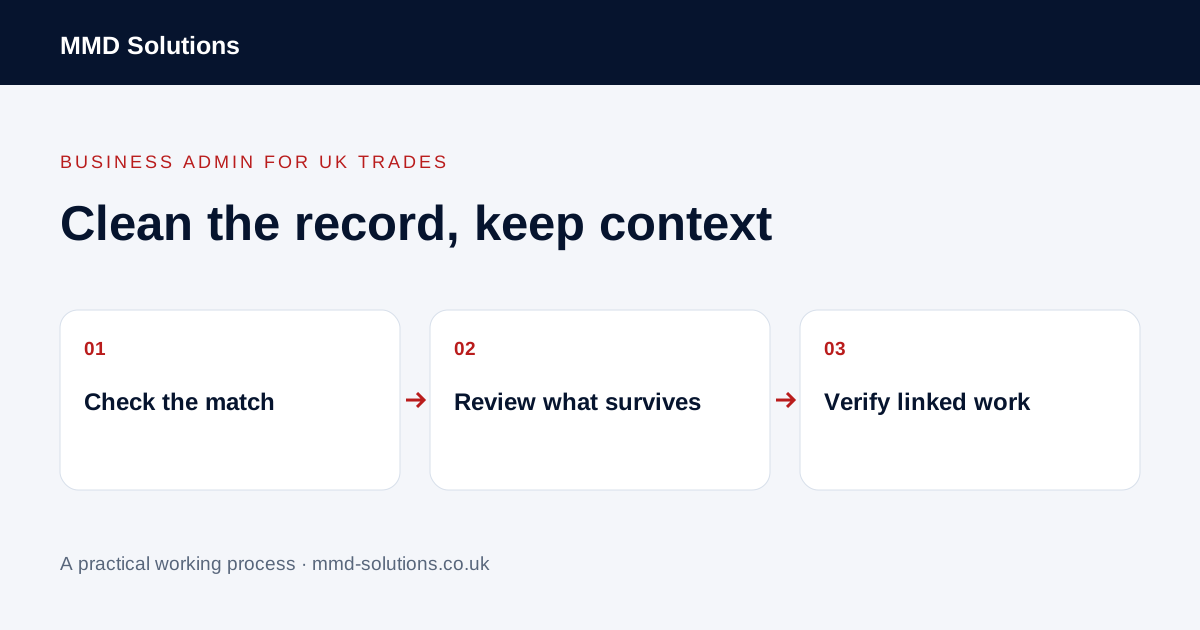
Choose a small set of possible duplicates
Start with a few records that are causing confusion in active work. Note their record IDs, why they were flagged and which jobs depend on them. Similar names, shared phone numbers or the same address can be useful clues, but each can also belong to different people or properties.
Do not launch a bulk merge based only on spelling similarity. For example, two contacts at the same letting agency can represent separate roles. One customer with two properties is also different from two copies of the same customer. Use the relationship structure your business actually needs.
Check identity and relationships first
- Compare the contact name, organisation and role.
- Check the appropriate email or phone against the source correspondence.
- Distinguish billing details from site details.
- Open associated enquiries, quotes, jobs and relevant notes.
- Identify conflicting values and their sources.
- Decide whether the records should stay separate, be linked or be reconciled.
If identity remains uncertain, leave the records separate and record what needs checking. Do not contact the wrong person or disclose one customer’s history to another merely to resolve a suspected duplicate.
Understand what the software will retain
Before merging, read the product’s current instructions for retained fields, activities, links and integration behaviour. Where available, use an appropriate export or backup and test with non-production examples. An exported customer CSV is useful evidence of field values, but is not necessarily a restorable backup of all documents and relationships.
HubSpot documents combining record history and associations while retaining most property values, with product-specific exceptions. It also states that merged records cannot be unmerged. Do not assume that another CRM follows the same rules or that deleting the duplicate reverses a merge.
An illustrative cleanup decision
By contrast, “Agency office” and “Property manager” may need to remain separate linked contacts. The correct result is an understandable customer history, not the smallest possible number of records.
Check the result and the cause
- Confirm the intended customer record opens correctly.
- Check linked active jobs, proposals, tasks and notes.
- Verify the intended contact and site details.
- Review connected systems for unexpected duplicates or missing links.
- Record what changed and who checked it.
Then ask how the duplicate was created: another CSV import, a form creating contacts, a different email address or manual entry without searching. Use an existing-customer selection or supported matching rule where appropriate. Avoid making a new record every time the same customer starts a different job.
Download the duplicate-review worksheet
Download the record-review log (CSV). It is a review aid, not an automatic matching or deletion tool. Restrict access to real customer information and use fictional examples when asking someone else to help.
If your system does not support safe merging, ask its support team about the supported alternative before changing live records. MMD can discuss the administrative handover around records; this article does not claim MMD Tracker offers a merge feature or that every duplicate needs custom software.
Sources and review
Reviewed 24 October 2026. HubSpot: merge behaviour and limitations.
Source material supports the specific examples referenced. The checklists, worksheets and illustrative scenarios are MMD's suggested business-admin processes, not customer results. Product workflows can change; check current documentation for the software you use.